HOW IT WORKS
From a sentence to a finished task.
Here is a task, step by step, using screens from the app's own walkthrough. It takes one permission, one switch, and one sentence.
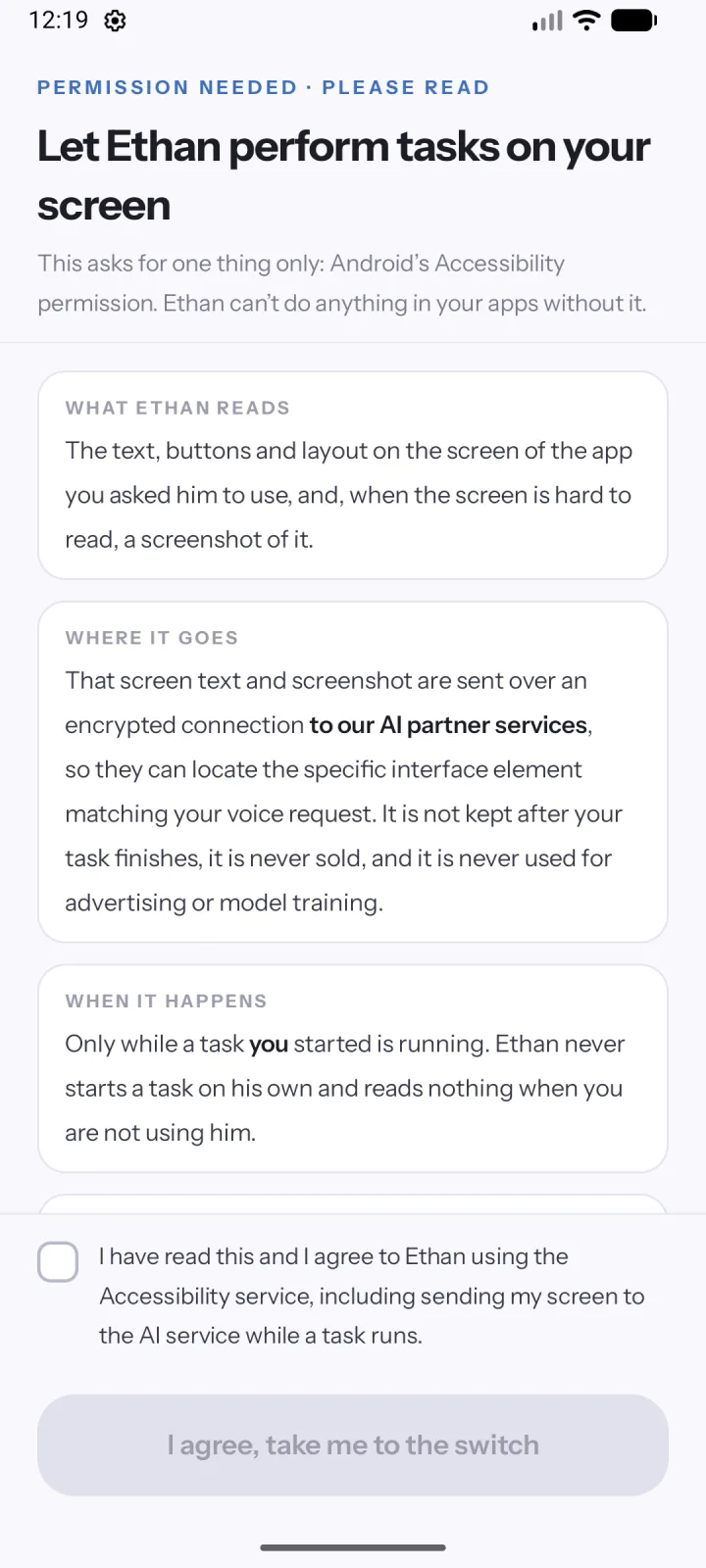
Turn on the Accessibility service
Ethan asks for one thing: Android's Accessibility permission. The screen tells you what Ethan reads, where it goes, and when it happens. Tick the box to agree, then Android takes you to its settings.
Ethan cannot do anything in your apps without this permission.
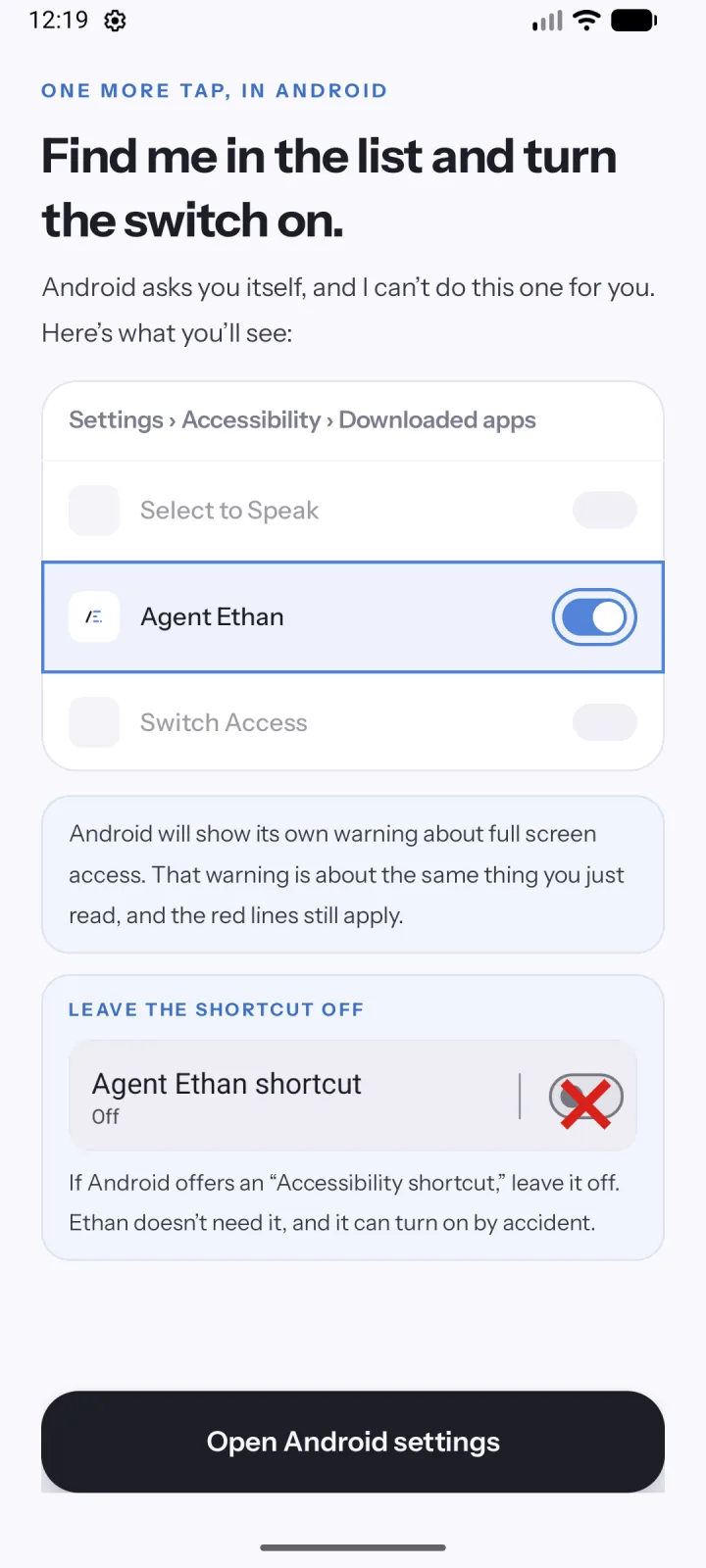
Find Ethan in the list and flip the switch
In Android Settings, under Accessibility and Downloaded apps (on some phones, Installed apps), turn on Agent Ethan. Android asks you itself, and Ethan cannot do this step for you. If Android offers an Accessibility shortcut, leave it off.
Android will show its own warning about full screen access. It is about the same thing the previous screen explained.
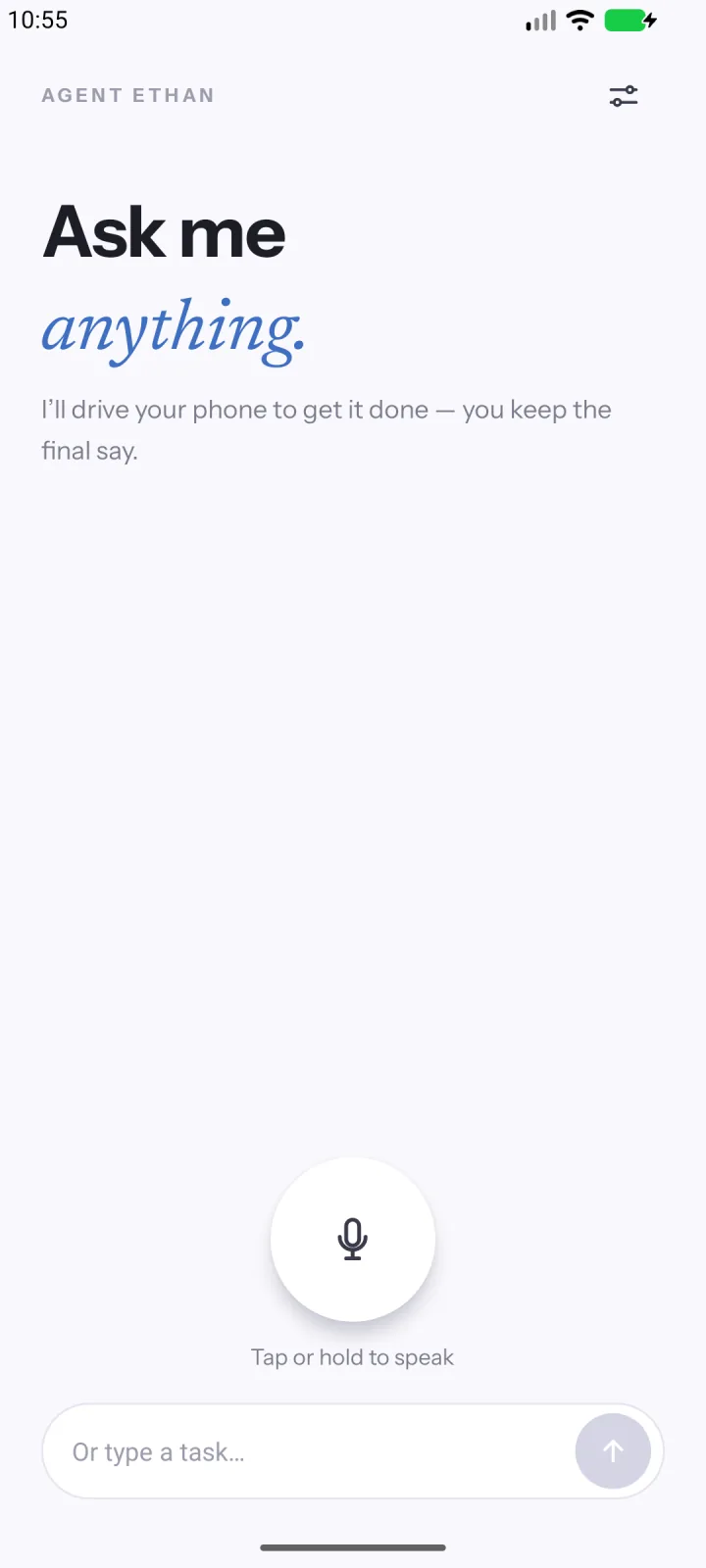
Say a task, or type it
On the home screen, tap or hold the microphone and say what you need. Or type it in the box. Ethan understands many languages.
For example: “Send Mom a WhatsApp, I reached home”.
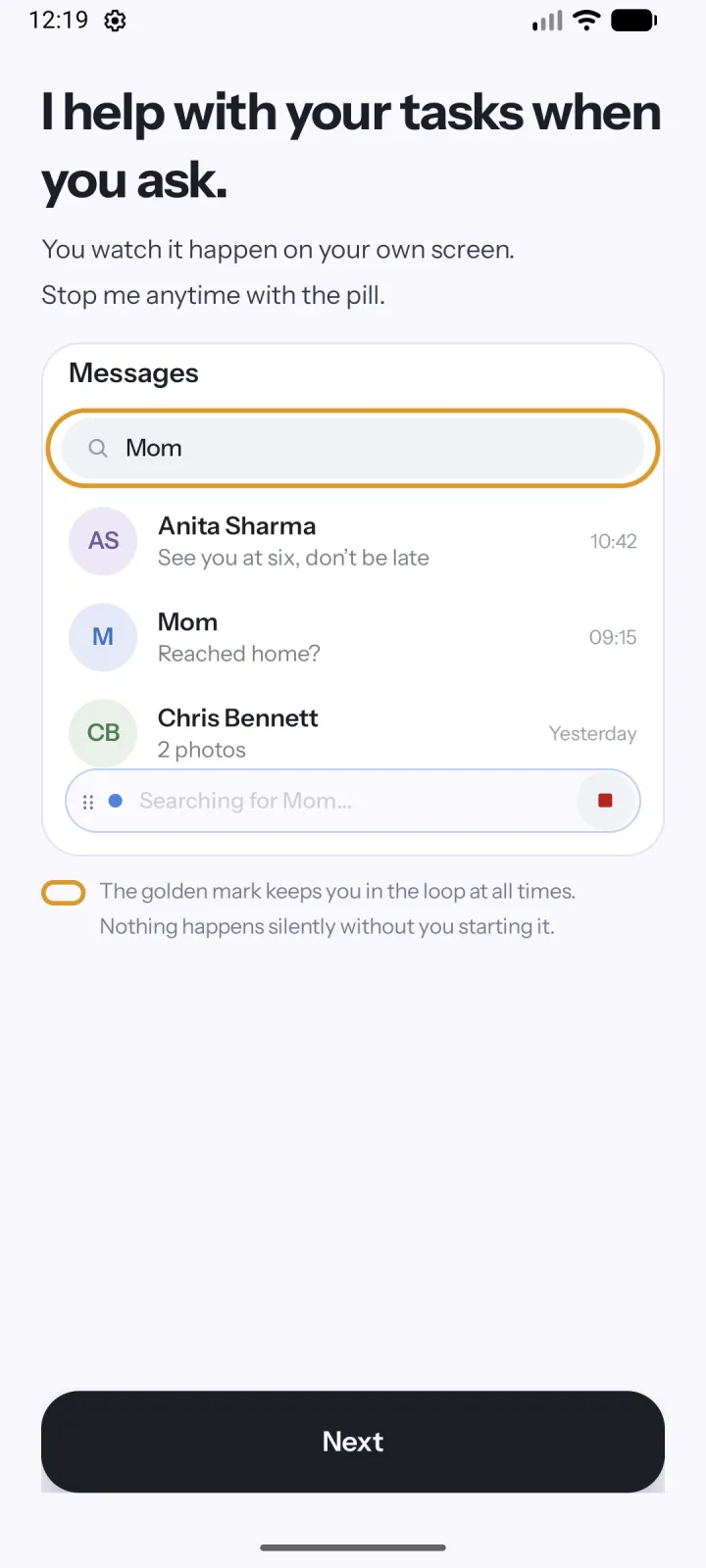
Watch it work, and pause or stop whenever you like
Ethan starts with a short plan: open the right app, do the task, and stop before Pay, Book or Delete when it recognises them. Then it steps aside so you can watch your own screen. A small pill stays on top while Ethan taps, types and scrolls in the app. A gold ring shows what it is about to press. Pause holds the run, and Stop ends it.
You can stop the task from the pill at any time.
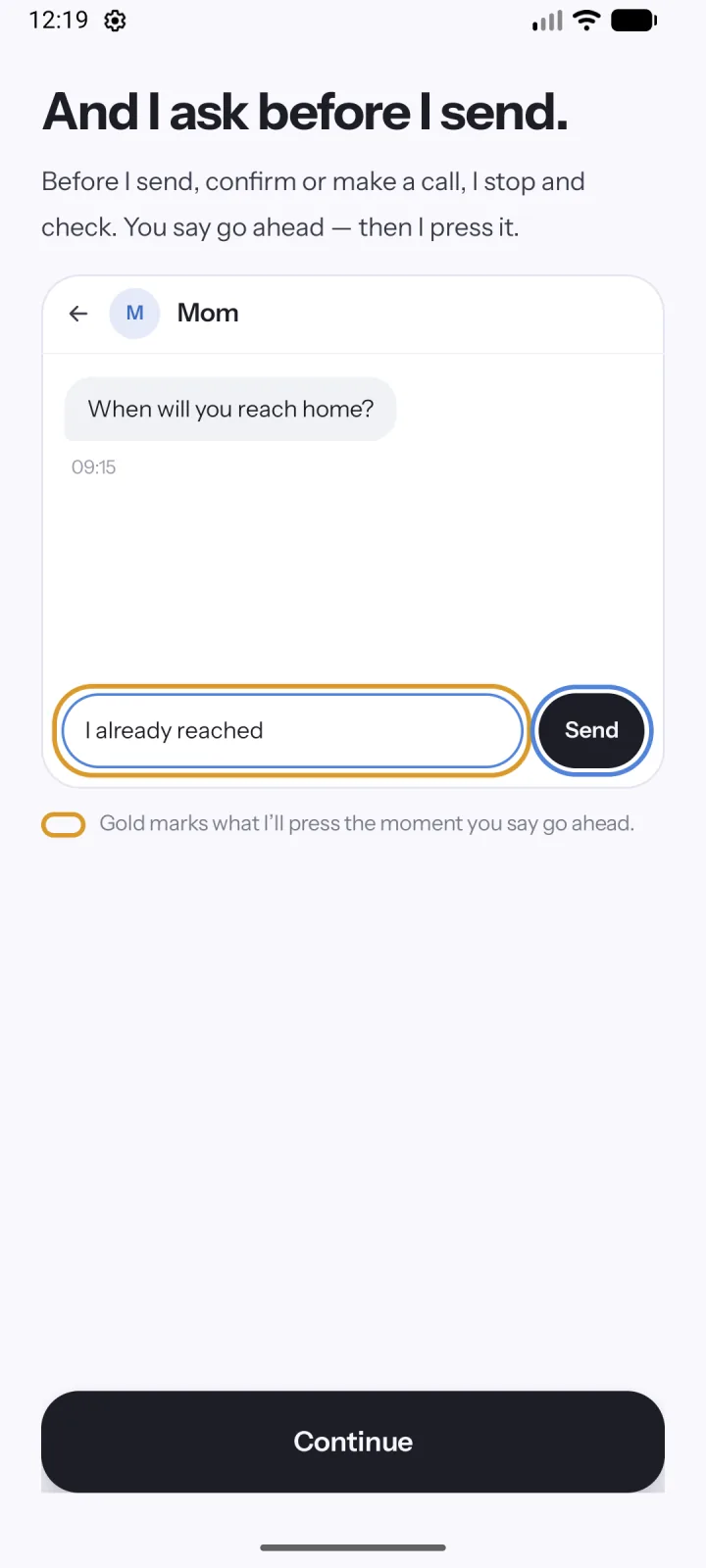
Say go ahead, and Ethan finishes
Before Ethan sends, confirms or makes a call, it stops and checks. You say go ahead, then it presses. If it is unsure, it asks, and you can answer by voice or with a tap. When the task is done, Ethan tells you, out loud if you chose that. The privacy policy explains what is kept.
By default Ethan stops before payments, bookings and permanent deletions and hands the phone back to you.
What you need
- Android 11 or newer
- A Google account or email sign-in
- Microphone, or type your tasks
Ethan also asks to display over other apps, which is how the small pill stays visible while it works. You can change any of these later in Settings. Need a hand? See support or the frequently asked questions.
Related guides
How Agent Ethan Handles Unclear Requests
When Agent Ethan is unsure what you meant, it asks. Numbered choices appear on screen and you answer by voice, by saying the number, or by tapping.
Everyday Tasks You Can Do by Voice With Ethan
Alarms, calls, messages, directions and more: real example phrases for Agent Ethan, what it does for each one, and where it stops and hands the phone back.
What Is an AI Phone Agent? Explained With Ethan
An AI phone agent reads your screen and taps for you, unlike a command-based assistant. Here is how it works, using Agent Ethan and Android as the example.
Turn an Android Accessibility Service On and Off
Switch an Android accessibility service on from Settings, turn it off again, and fix a greyed-out switch, with Agent Ethan as the worked example.
Send a WhatsApp Message by Voice on Android
Say who and what, and Agent Ethan opens the chat, types your message and, by default, stops so you can check it before Send. Here is the whole flow.
How to Set Up Agent Ethan on a Parent's Phone
A calm, step-by-step way to set up Agent Ethan on a parent's Android phone once, so they can say what they need and stay in control of every step.
GET STARTED
Ready when you are.
Agent Ethan is free to start, with a daily allowance of assisted tasks. It needs Android 11 or newer.