Turn an Android Accessibility Service On and Off
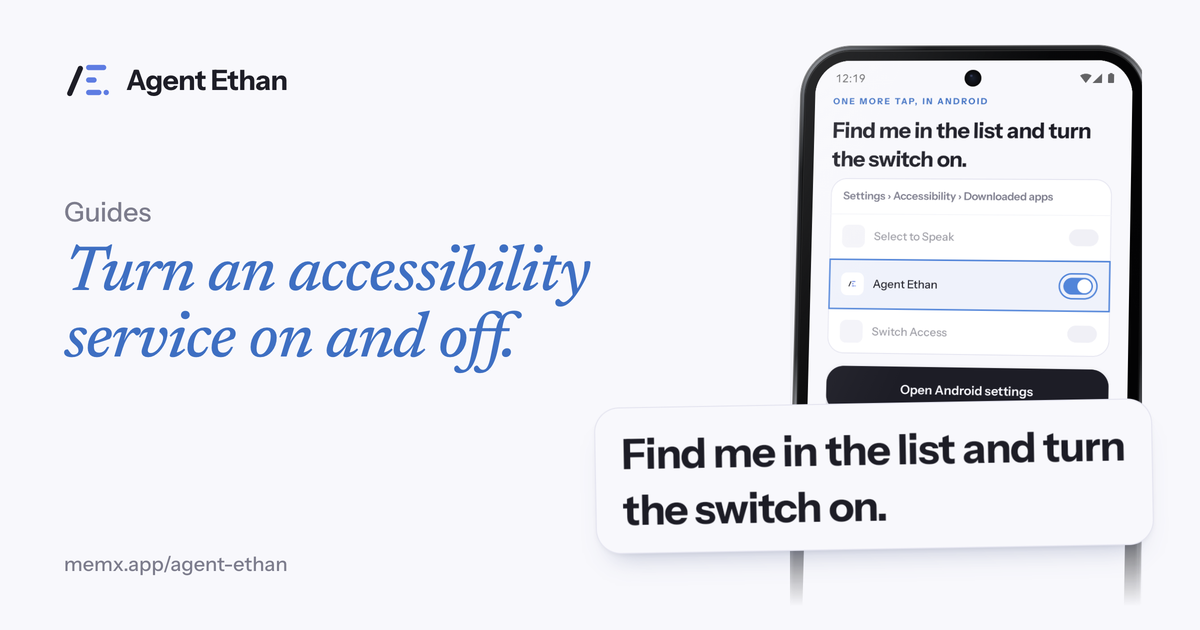
To turn on an accessibility service, open Settings, tap Accessibility, find the app under Downloaded apps, tap it and switch it on. To turn it off, go back to the same screen and switch it off. Agent Ethan works this way, and you can do both whenever you like. This guide walks through each step, explains what to do if the switch is greyed out, and shows what Ethan does and does not do once it is on.
Turn the service on
Google's Android Accessibility Help describes the route for services you download. You open Settings, tap Accessibility, look under Downloaded apps, tap the service, and turn it on. Google's own example uses Switch Access, but the same route applies to other downloaded accessibility apps.
For Agent Ethan, the app walks you there itself. After you read the permission screen and agree, it takes you to Android settings and shows what you will see, with a note that Android asks you itself and Ethan cannot flip this switch for you. That is by design, because the permission is yours to grant.
Menu names can differ a little between phone makers and Android versions. The steps below match Google's help pages and the app's own breadcrumb, which reads Settings, Accessibility, Downloaded apps.
- Open the Settings app on your phone.
- Tap Accessibility.
- Under Downloaded apps, tap Agent Ethan.
- Turn the switch on and read the warning Android shows.
- Confirm, then go back to Agent Ethan. The "Accessibility service is off" banner on its home screen should be gone.
What the Android warning means
When you switch a service on, Android shows its own warning about full screen access. The app tells you in advance that this warning is about the same thing you just read on its permission screen. Google's restricted settings page explains why the access is sensitive: with access to accessibility settings, an app can read content on your screen and interact with apps on your behalf.
For Agent Ethan, the privacy policy limits how that access is used. It reads the screen of the app you asked it to operate, only while a task you started is running, and it never starts a task on its own. The warning is worth reading each time, for any app that asks.
One more thing to know. If Android offers an Accessibility shortcut for the service, the app's setup screen asks you to leave it off. The app says Ethan does not need it and that it can turn on by accident. Google's shortcuts page describes the volume keys shortcut as pressing and holding both volume keys, and notes that some of its steps work only on Android 12 and up.
Turn the service off
Google's page on turning off an accessibility service gives the steps, again using Switch Access as its example. You open Settings, select Accessibility and then the service, and at the top you select the On or Off switch. Do the same for Agent Ethan and the service stops.
The privacy policy confirms you can do this at any time in Android Settings under Accessibility, and the terms say that once it is revoked the app cannot operate other apps. The Agent Ethan app will then show a banner on its home screen that reads accessibility service is off, with a Turn on link.
Turning it off is a good habit if you lend your phone to someone, or if you want to be sure nothing can run. You can turn it on again later in the same place.
- Open Settings, then Accessibility.
- Tap Agent Ethan.
- Switch it off at the top.
- To start again later, switch it on in the same place.
A quicker way: Quick Settings
Quick Settings is the panel you pull down from the top of the screen. Google's help page says you swipe down once for the first few settings and again for all of them. To turn a setting on or off you tap its icon, and dimmed settings are off. You can change what appears there by tapping Edit.
Google says adding an accessibility tile directly from Settings is only available on Android 15 and up, and the features its page lists for this are built-in ones such as Color correction, One-handed mode and Live Transcribe. A downloaded service such as Agent Ethan is not on that list, so do not count on a Quick Settings tile for it. The Settings route above is the one to rely on.
If the switch is greyed out
If the switch will not respond, Android may be treating the app as restricted. Google's page on restricted settings says that some device settings may be restricted when you install an app, and that some of its steps work only on Android 13 and up. It also notes that an app designed to support people with disabilities might ask you to turn on accessibility settings.
The Agent Ethan README describes one case where this appears. On Android 13 and newer, it says, an APK installed from a browser is put under restricted settings, which greys out the accessibility toggle. If you installed from Google Play, try the switch first and use this step only if it is greyed out.
For a restricted app, Google's steps are to open Settings, tap Apps, select the app, tap More and then Allow restricted settings, and follow the prompts. The README puts it as the three dots at the top right of the app's screen. Google adds a caution: it does not recommend allowing restricted settings unless you trust the app developer. So only do this for an app you installed on purpose and trust.
Frequently asked questions
Will turning the service off delete my account or history?
No. Turning off the service stops Ethan from operating other apps. Your account is separate. To remove an account and its data, open Settings, then About, then Delete account & data in the app, and read the privacy policy for what is kept.
Can Agent Ethan turn the accessibility switch on for me?
No. The app says Android asks you itself and that it cannot do this one for you. You turn it on in Android Settings.
Why is the switch greyed out?
Google says some device settings may be restricted when you install an app, and some of its steps work only on Android 13 and up. The Agent Ethan README describes this for an APK installed from a browser. In Settings, under Apps, choose the app, tap More, then Allow restricted settings, only if you trust it.
Do these steps look the same on every phone?
The route is Settings, Accessibility, then the app, but names and layout can vary by maker and Android version. If your screen looks different, search Settings for Accessibility.
Sources
- Find the new Switch Access (Android Accessibility Help)
- Turn off Switch Access (Android Accessibility Help)
- Find accessibility services in Quick Settings (Android Accessibility Help)
- Use accessibility shortcuts (Android Accessibility Help)
- Learn about restricted settings (Android Help)
- Agent Ethan privacy policy
Ready to try it? Download Agent Ethan or read how it works.