Send a WhatsApp Message by Voice on Android
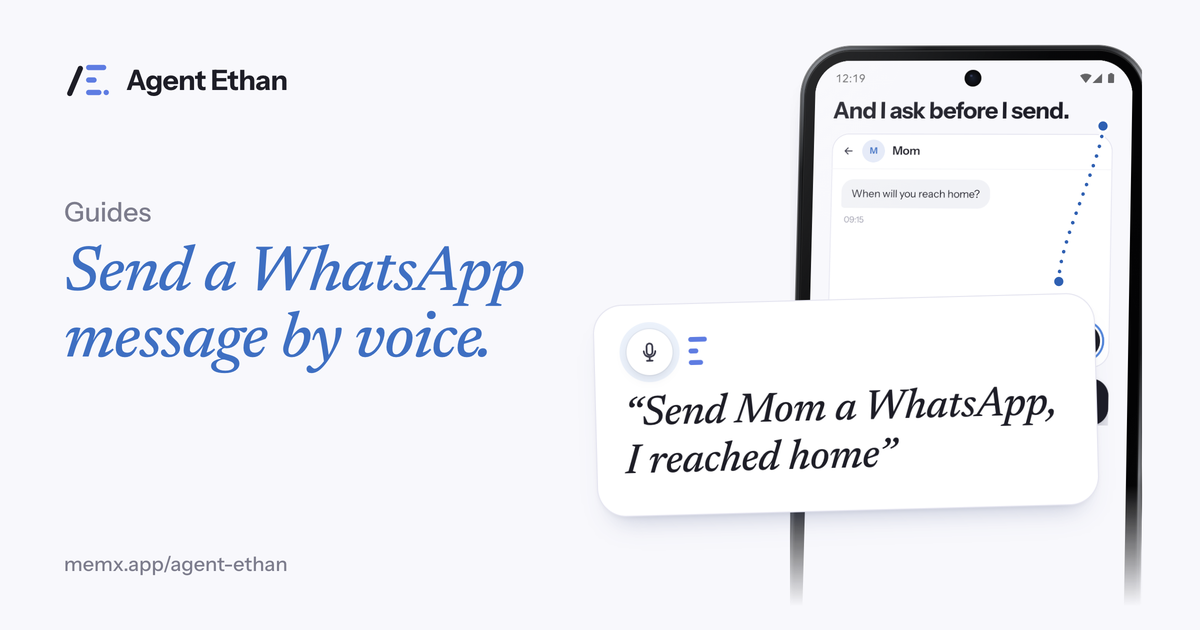
To send a WhatsApp message by voice with Agent Ethan, tap the microphone and say something like "Send a WhatsApp message to my son saying I reached home." Ethan opens the app, finds the chat, types the message and then stops. By default it asks before it presses Send, so the last word is yours. WhatsApp is a separate app made by another company, and Ethan operates it the way you would, through the screen.
What you say, and what happens next
The example in the Agent Ethan listing is "Send a WhatsApp message to my son saying I reached home." The first-run demo uses a similar one, "Send Mom a WhatsApp, I reached home." You do not need special wording. Say who the message is for, name the app, and say what the message should be, in your own words and in your own language.
Ethan then shows a short plan on screen, headed "On it", so you can see what it understood before it touches anything. A small pill stays on top of the screen while it works, with Pause and Stop. A hollow gold ring marks the control it is about to press, so you never have to guess where it is tapping.
The app's first-run demo shows the order: Ethan searches for the person, opens the chat, and then stops with the reply typed and ready. You watch all of it happen on your own screen. Nothing runs unless you started a task.
Before you start: three things to check
A few things need to be in place once, and then voice messages are quick every time. None of them are hard, but they are the usual reasons a first try does not work. WhatsApp also changes its screens from time to time, so a step that worked last week may need a retry. If Ethan gets stuck, tap Stop and try again, or finish the message yourself.
Agent Ethan also needs Android 11 or newer, and you sign in with a Google account or an email address. It is free to start with a daily allowance of assisted tasks.
- Agent Ethan's Accessibility service is switched on in Android Settings. This is the permission that lets Ethan read the screen and make the taps for you.
- The microphone is allowed, or you are happy to type the task instead. Typing works too.
- WhatsApp is already installed on the phone and you are already signed in to it. Ethan does not set up WhatsApp for you.
How the message gets typed, and why Ethan stops
Ethan can reach a chat in two ways, depending on what you told it. In the app source, when you give a full phone number with the country code and the app's shortcuts are available, Ethan can open the chat with the message already typed in. If you name a contact instead, it opens WhatsApp and finds that person on screen, the same way you would scroll or search.
Either way, the message ends up typed in the box and not yet sent. In the app source, Ethan is told at that point that the chat is open with the text typed, and that it should check it before tapping Send. That is the checkpoint. You read the message and the name at the top of the chat, and you decide.
This matters more with chat apps than with most things. A message to the wrong person, or one that went out half finished, is harder to take back than a mistyped search. The app's onboarding says it plainly: before it sends, confirms or makes a call, Ethan stops and checks, and you say "go ahead" or press the button yourself.
Saying go ahead, or pressing Send yourself
When the typed message is ready, Ethan asks. You can say "go ahead" and Ethan presses Send for you, with the gold ring showing which button it means. Or you can press Send with your own finger if you would rather. If something looks wrong, tap Stop on the pill, and by default nothing is sent.
Settings has an Autonomy option. In the app source, the starting level is the most careful one, which the app words as "Asks before Send or Call". The next level, which the app words as "May press Send or Call itself", lets Ethan press Send itself and ask only when it is unsure. If you are setting the phone up for someone else, open Settings and check that Autonomy shows the careful wording, then leave it there.
In the app's onboarding, Ethan lists passwords, PINs and one-time codes as things it never touches, even if you ask. If WhatsApp ever asks for one, that screen is yours.
When Ethan is not sure who you mean
If you have two contacts called Sam, or the name you said is close to several people, Ethan is built to ask instead of picking one and hoping. Numbered choices appear over the options on your screen, and you answer by voice, by saying the number, or by tapping the one you mean.
It helps to say the name the way it appears in your contacts, and to add a detail when two people are alike, for example "Sam from work." The more specific the first sentence, the fewer questions Ethan is likely to ask.
A few tips make messages go smoother. Keep each task to one message. Say the message text clearly and pause at the end. If the phone is in a noisy room, type the task instead, since typing works too.
What Ethan sees while it does this
To work out each next step, Ethan reads the screen of the app it is operating, including a screenshot when the text alone is not enough. Screen content and screenshots go to an AI service only while your task is running. That can include the chat on screen at that moment, so use Ethan the way you would let a helper look over your shoulder for a minute.
The app keeps a task history, a short summary of what was asked and done, and you can clear it from Settings. The app also has diagnostics and a Help improve Agent Ethan setting, so read the privacy policy for what is kept and for how long. The privacy policy page is the page to trust over any summary.
Frequently asked questions
Does Agent Ethan work with WhatsApp officially?
No. WhatsApp is a separate app made by another company, and Agent Ethan has no partnership with it. Ethan simply operates the app on your screen, as you would, with your permission.
Will Ethan send the message without asking me?
By default, no. In the app source, the starting setting asks before Send or Call. Settings has an Autonomy option, and a more relaxed level lets Ethan press Send itself, so check which one your phone is on.
Can I dictate the message in my own language?
Yes. The listing says Ethan understands many languages, and the app's welcome screen names English and Spanish as examples. Say the task in the language you normally speak, and check the typed text before it is sent.
What if Ethan opens the wrong chat?
Tap Stop on the pill. By default, nothing is sent until the message is typed and you say go ahead or press Send yourself.
Sources
Ready to try it? Download Agent Ethan or read how it works.