Use Your Android Phone in Your Own Language by Voice
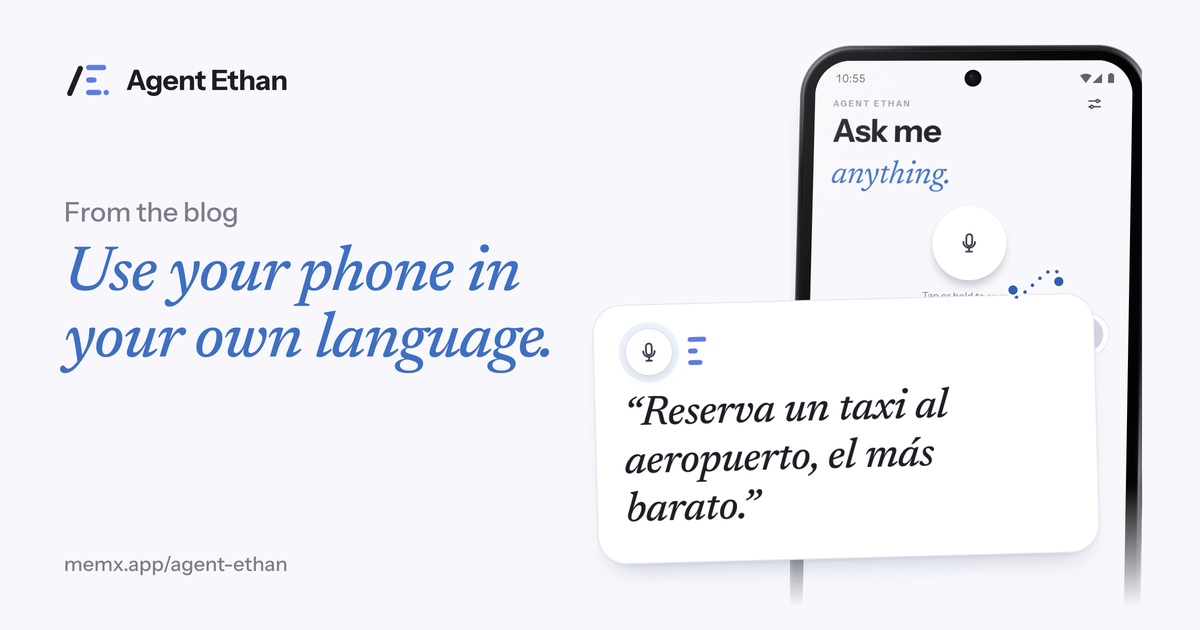
You can use your Android phone in your own language by speaking a task to Agent Ethan, even when the app in front of it is in English. Say it in the language you are most comfortable in, whether that is Spanish or another language you speak at home, and Ethan works through the English menus, buttons and search boxes for you. This post explains how that works, what to say, and the honest limits.
The everyday problem with English screens
Many people carry a phone that is mostly in English. The apps, the buttons, the settings pages and the confirmation messages are all English, even if the person using them thinks, speaks and reads more easily in another language. Typing an English message, or finding the right English word on a menu, can be slow and stressful.
A common workaround is to ask a child or neighbour to do it. That works, but it takes away independence, and it means every small job, like sending a message to a relative or setting a reminder, waits for someone else.
Agent Ethan is built for exactly this gap. You speak the task in the language you are comfortable in. Ethan reads the screen, works out which button is which, and does the tapping and typing. You do not have to translate the app in your head.
How speaking in your language works with Ethan
Tap the large microphone and say what you want in your own words. Ethan understands many spoken languages. The app's own welcome screen says to hold the button and speak in whatever language you speak at home, and it names Spanish as one example. The screens in your apps can stay in English. If you turn on the floating button in Settings, you can also start from over another app.
Ethan then shows a short plan, "On it", and works through the apps while a small pill stays on screen. A hollow gold ring shows what it is about to press, so you can follow the English screen even if you cannot read all of it. If you prefer to hear what is happening, you can choose "Out loud" in Settings so Ethan speaks to you.
- Speak the task in your own language and your own words.
- Ethan turns it into steps and shows the plan.
- It works the English screens: taps, typing and scrolling.
- It tells you out loud when it needs you, if you choose Out loud.
Things you can say
Say the task the way you would say it to a person. The app listing suggests tasks such as sending a WhatsApp message to your son saying you reached home, calling your doctor's clinic, setting an alarm for tomorrow morning, reading out your latest messages, and playing music on YouTube. You can say these in the language you speak.
For a message, Ethan fills in the contact and the text. If it is unsure which contact you mean, it shows numbered choices on screen, and you pick by saying the number or by tapping. By default, Ethan asks before it sends a message, and it stops before a payment and hands the phone back to you.
By default, a spoken task is sent to an online speech service (Google Gemini, through Neural Forge's server) to be turned into text, and the app describes this as working with any language. When you are offline, Ethan can fall back to your phone's own speech recogniser, which may hear some languages less well. If speech does not work for you, you can type the task instead. The privacy policy describes how voice is handled.
A practical tip is to name people and apps the way they appear on your phone. If your contact is saved as Mom, say Mom. If the app is called WhatsApp, say WhatsApp. Ethan works from what it can see on screen, so names that match the labels are the easiest for it to find.
Voice typing in your keyboard is a different tool
It helps to separate two things. Your phone's keyboard may offer its own voice typing. Google's help page for Gboard says you can tap the microphone on the keyboard to speak your text, and that to switch languages you need more than one language enabled, then tap the language abbreviation in the voice toolbar. That is dictation, which turns your speech into text in a box.
Agent Ethan does something different. It is not only typing what you say. It carries out the whole task across your apps, opening them, finding the right screen, and pressing the right controls. The two can sit side by side on one phone: keyboard dictation for writing, Ethan for doing.
Honest limits and tips
Speech recognition is not perfect in any language. Accents, background noise and unusual names can cause mistakes. Speak clearly, hold the phone close, and keep sentences short. Ethan asks before it sends a message by default, which gives you a chance to catch a misheard name before it matters.
Ethan runs on Android 11 or newer and needs a Google account or an email sign-in. It is free to start with a daily allowance of assisted tasks. Results can differ from one language to another, so try a few simple tasks first, like an alarm, and see how it hears you.
If you would rather not talk in front of others, you can type the task instead. Ethan is built to help people who struggle with a phone, and it should make things easier whichever way you ask.
A good first week is three small tasks said in your own language: an alarm, a call to someone you know, and a short message. Once you hear how Ethan answers and see the plan on screen, you will know how much to trust it for bigger jobs, and which phrases it hears best. If a phrase is misheard, say it again more slowly or in shorter words.
Frequently asked questions
Can I speak Spanish or another language to my Android phone?
Yes. Agent Ethan understands many spoken languages, and its welcome screen names Spanish as one example. You speak the task in the language you prefer and Ethan handles the English screens in your apps. Results can vary by language and voice, so start with simple tasks.
Do I need to change my phone's language to use Agent Ethan?
No. You can leave your apps in English and simply speak in the language you prefer. Ethan reads the screen and does the tapping.
How do I switch languages for voice typing on Android?
In Gboard, enable more than one language, tap the microphone, then tap the language abbreviation in the voice toolbar and choose another. That is separate from Agent Ethan, which carries out tasks in your apps.
Sources
Ready to try it? Download Agent Ethan or read how it works.