Agent Ethan for Older Adults and Their Families
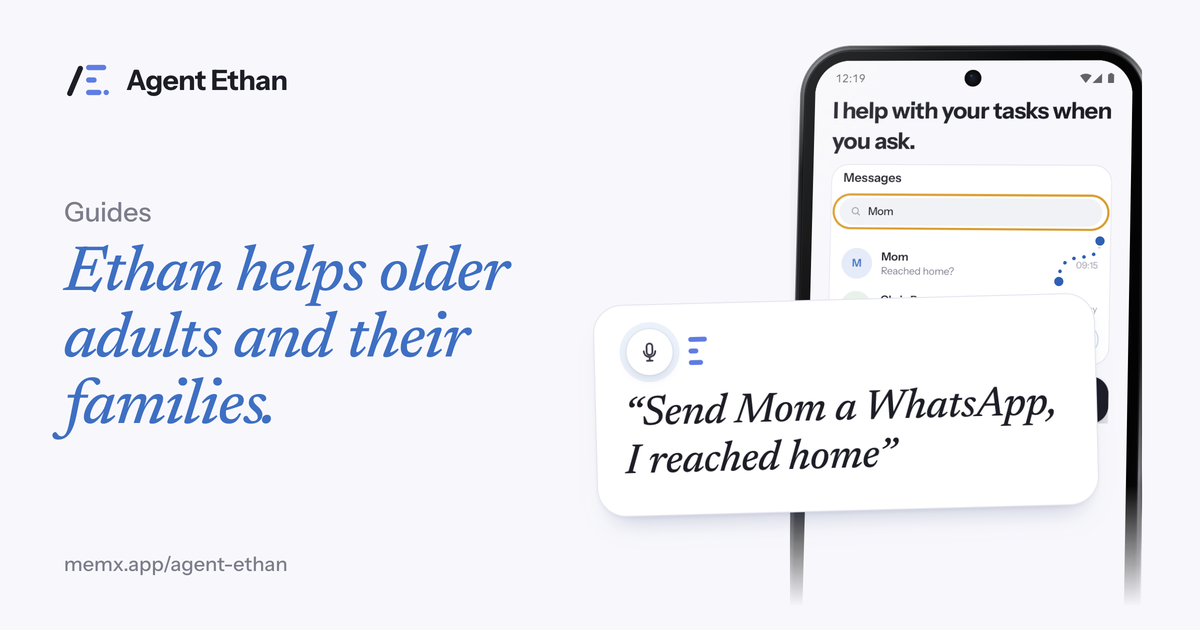
For an older adult who finds menus, search boxes and small buttons confusing, Agent Ethan lets them say what they need in plain words, and Ethan does the tapping. A family member sets it up once, and after that the person can ask for a call, a message or an alarm without learning the phone. Ethan stops before payments, so the parent keeps control of the moments that matter.
The problem is usually the screens, not the person
Phones are crowded. A single app can have a dozen small icons, a search box, hidden menus and buttons that change with each update. Someone who has managed their own life for decades can still be lost in a screen that assumes they already know where everything is.
Some older adults end up phoning a relative for help with simple things, such as sending a photo or finding a number. That is stressful for both sides. The parent feels they are a bother, and the family member is asked to explain the same thing again over the phone.
Agent Ethan takes a different route. Instead of teaching your parent where the buttons are, Ethan finds them. Your parent says the job in their own words, and in their own language if that is easier, and Ethan does the navigation.
You set it up once
The sensible way to start is for you to sit with your parent and do the setup together. You install Agent Ethan, sign in with a Google account or email, and switch Ethan on in Settings under Accessibility. Ethan needs Android 11 or newer, and it is free to start with a daily allowance of assisted tasks.
Next, choose the settings that suit your parent. "Talk to me" in Settings lets you choose "Out loud, plus on screen", so Ethan speaks when it starts, whenever it needs your parent, and when it is done, which many people find more reassuring than reading a screen. By default, Ethan also asks before it sends a message or places a call, and you can leave it that way.
Then do a first task together, something low-stakes like setting a morning alarm. The gentlest way to build trust is to let your parent watch it succeed once while you are next to them.
If your parent lives far away, you can still help. Arrange a video call, talk them through the same steps, and ask them to try one task while you listen. Our parent setup guide is written so that you can follow it in order, whether you are in the same room or not.
What your parent actually says
Your parent taps the large microphone, or the optional floating button, or long-presses the app icon to start listening straight away. They then speak naturally. They do not need special phrases, and they can type the task instead if they prefer.
Good first jobs are the ones they do most often. These are the sort of requests Ethan is made for:
Write the three or four phrases your parent uses most on a card by the phone. Ethan does not need exact wording, but a card gives a nervous first-time user something to say. Over a week or two, most people stop needing it and ask in their own way.
- "Send a WhatsApp message to my son saying I reached home"
- "Call my doctor's clinic"
- "Set an alarm for 6:30 tomorrow morning"
- "Read me my latest messages"
- "Play gentle piano music on YouTube"
How Ethan keeps your parent in control
Ethan does not work in secret. It first shows a short plan under "On it", and while it works a small pill stays on screen with Pause and Stop. A hollow gold ring marks the control it is about to press, so your parent can see what is happening.
If Ethan is unsure, it asks. For example, if there are two contacts called Sam, numbered choices appear on the screen and your parent can say the number. It is designed to ask rather than guess.
Pause and Stop on the pill are the controls to teach, so your parent knows how to stop a task at any moment.
Teach just one habit on the first day. Many families find it easiest to pick either the microphone or the optional floating button and leave the rest for later.
You can look back at what Ethan did, too. Ethan keeps a list of past tasks in the app, and Settings has a button to clear it, so a parent who wonders what happened earlier can check without involving anyone else.
Payments, scams and what Ethan will not do
Scams are a risk for anyone, and that is a good reason to be careful with any tool that can operate a phone. By default, Ethan stops before payments and similar steps. By default it asks before it sends a message or places a call, and it stops before payments, bookings and permanent deletions and hands the phone back to you. Payments are the strongest rule: Ethan is designed to ask before paying. By design it does not touch passwords, PINs or one-time codes.
This is a safety net, not a replacement for caution. Remind your parent that Ethan cannot tell whether a request is a scam. If anyone asks them to pay, share a code or move money, they should stop and call you, whatever the phone says. Ethan stops at the payment step, which gives them a natural moment to pause.
You can find the details of data handling on the security page, and the app's accessibility permission can be turned off at any time in Android Settings.
Finally, agree a rule together that anything involving money, a code or an unexpected call is a reason to phone a family member first. A simple family rule is more reliable than any app setting.
Frequently asked questions
Does my parent need to learn a lot to use Agent Ethan?
Very little. You set it up once, and then your parent says what they want in their own words. Teach one habit first, such as tapping the microphone.
Can Ethan make a payment by mistake?
By default Ethan asks before sending a message or placing a call, and it stops before payments, bookings and permanent deletions and hands the phone back to you.
What if my parent does not speak English?
Ethan understands many spoken languages, so your parent can speak in their own language and Ethan handles the English screens.
Sources
Agent Ethan is a tool for operating your phone. It is not medical advice or treatment.
Ready to try it? Download Agent Ethan or read how it works.