How to Set Up Agent Ethan on a Parent's Phone
You can set Agent Ethan up on a parent's phone in one short sitting, and after that they only need to say what they want. You install the app, sign in, switch on Ethan in Android's accessibility settings, and choose a few safety options together. This guide walks through it in order, with the choices that matter most for an older parent who is not comfortable with menus and small buttons.
Before you sit down with the phone
Check the basics first. Agent Ethan needs a phone running Android 11 or newer, and a Google account or an email address to sign in with. It is free to start with a daily allowance of assisted tasks.
Decide with your parent which two or three jobs they most want help with. Maybe it is sending a message to a grandchild, calling the clinic, setting a morning alarm, or listening to devotional songs on YouTube. Starting with a few real jobs makes the first session feel useful rather than technical.
Pick a quiet moment, put the phone on charge, and ask them to sit next to you. This is their phone and their decision, and the whole setup is more comfortable when they watch each switch you turn on and hear why.
Install, sign in and turn Ethan on
Install Agent Ethan from the download page, then open it. The first screens introduce Ethan and what it will ask for. You sign in with Google or email, which is how the daily allowance is counted. The account uses your parent's email address and a daily usage count for the allowance. The app also has diagnostics and a Help improve Agent Ethan setting, so read the privacy policy for what is kept and for how long.
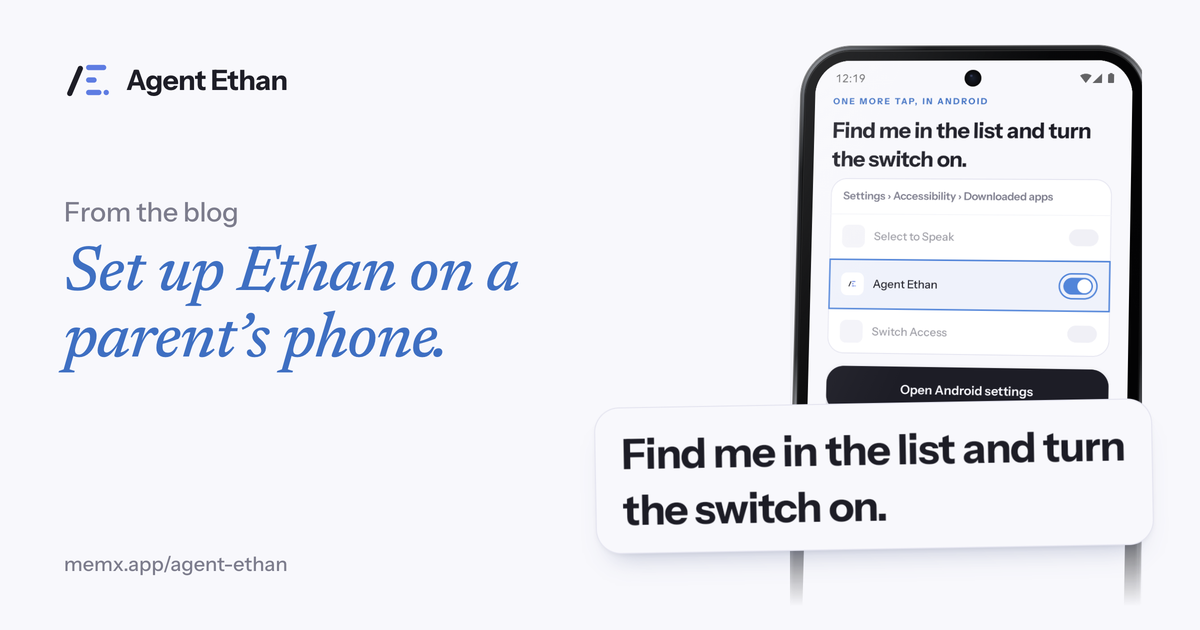
The key step is the accessibility permission. Ethan works through Android's Accessibility Service, so you open Settings, go to Accessibility, find Agent Ethan (on many phones it is under Downloaded apps) and switch it on. Google's help page for Switch Access shows the same pattern for an accessibility service: Settings, Accessibility, the service, then the On/Off switch. Read the prompt Android shows with your parent, because it is the moment they agree to let Ethan operate the phone.
If you installed the app from a downloaded file rather than the store, Android 13 and newer may restrict the accessibility settings for it. Google's help page on restricted settings explains the fix: open Settings, then Apps, choose the app, tap More and pick Allow restricted settings. Google gives an app that supports people with disabilities as an example of when this is needed, and it advises allowing restricted settings only for apps you trust.
- Open Agent Ethan and sign in with Google or email.
- Go to Settings, then Accessibility, then Agent Ethan, and switch it on.
- Allow the microphone when asked, so Ethan can hear the spoken task.
- If Android restricts the switch, use Allow restricted settings on the app's info screen.
Choose the settings that keep a parent safe
Leave the Autonomy choice at its default. By default, Ethan asks before it sends a message or makes a call: it types the message, shows it, and presses Send only after your parent says go ahead. A misheard name or a wrong word is then caught while it is still easy to fix. The Autonomy choice in Settings has a more relaxed level, where Ethan may press Send or Call itself when it is sure, and your parent can move to it later once they trust Ethan.
Choose how Ethan talks. In Settings you can pick "Out loud" so Ethan speaks when it starts, when it needs your parent, and when the task is done. Many people find that spoken feedback is more reassuring than watching the screen, especially if the text is hard to read. The listing says people who use a screen reader such as TalkBack keep it on while using Ethan.
Decide about the floating button. It is off until you turn it on in Settings, and when it is on, Ethan is a small button over other apps, which gives your parent a way to start without opening anything. Long-pressing the app icon also starts listening straight away. Teaching one of these two habits is plenty for day one.
Do a first task together
Start with something low-stakes and pleasant, like "Set an alarm for 7:30 tomorrow morning". Have your parent tap the microphone and say it in their own words and, if they prefer, their own language. Watch together as Ethan shows its plan, headed "On it", then works while the small pill stays on screen with its Pause and Stop buttons.
Point out the gold ring. It marks what Ethan is about to press, and it helps your parent see what is happening on the screen. Then try a message, such as "Send a WhatsApp message to my son saying I reached home", and let them say go ahead before it sends.
Finally, show them the one safety habit worth remembering: by default, Ethan stops before Pay, Buy, Book, Send money and a permanent delete, and hands the phone back at that point. They still need to check the final screen, but Ethan will not press those on its own in the default settings.
Keep it simple afterwards
Write down the three sentences your parent will say most, and tape the list somewhere they will see it, or save it in a note on the phone. People remember what to say more easily when they have seen it work a few times.
Tell them they can stop at any moment, and show where. Pause and Stop sit on the pill, and the accessibility switch in Android Settings turns Ethan off. The app keeps a task history that can be cleared from Settings whenever your parent or you like.
If something does not work, write to [email protected] for help setting it up. Be patient with the first week. Ethan is a helper, not a replacement for you, and it does not diagnose or treat anything. It is meant to make a phone easier to operate.
Frequently asked questions
Can I set up Agent Ethan for my mother or father remotely?
The accessibility permission must be switched on on the phone itself, so someone needs to hold the phone for the setup. After that your parent can use it by speaking, and you do not need to be there.
Does my parent need a Google account to use Agent Ethan?
They can sign in with a Google account or with an email address. The account uses their email address and a daily usage count for the allowance. The privacy policy covers anything else the app keeps.
What if my parent says the wrong thing or Ethan mishears?
By default Ethan asks before it sends a message, so a mistake can be corrected first. Pause and Stop are on the pill while a task runs, and Ethan asks with numbered choices when it is unsure.
Sources
Ready to try it? Download Agent Ethan or read how it works.