Voice Control or Touch When Tapping Is Hard
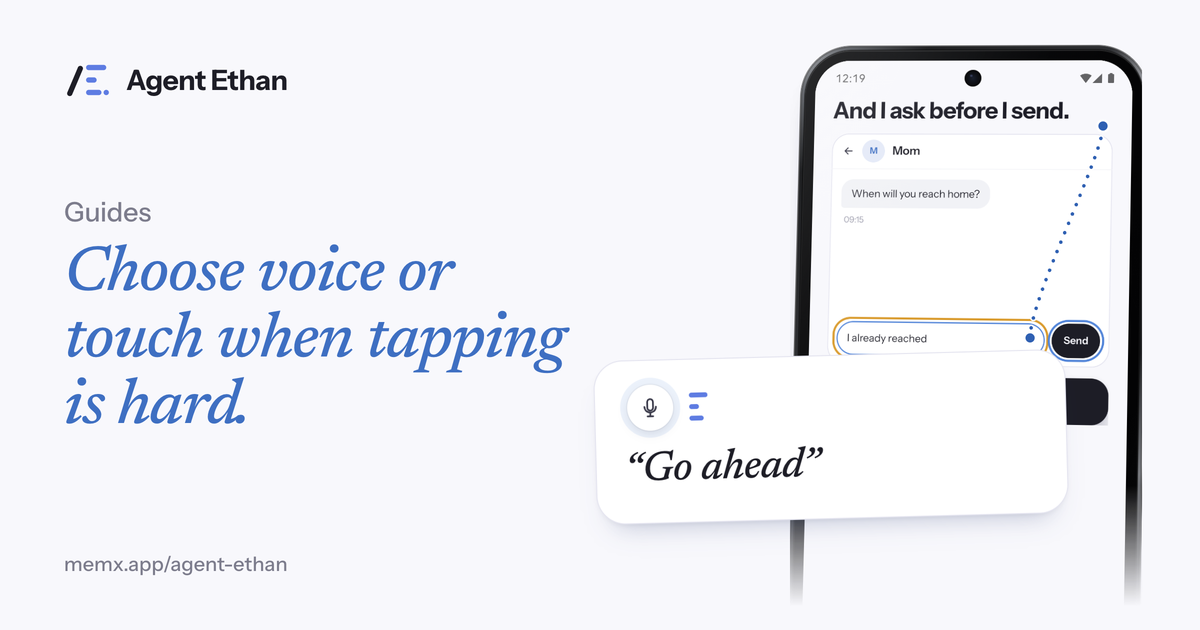
When tapping is hard, the best choice depends on the task, not on a single tool. Touch is still fine for quick, forgiving jobs. Voice commands suit people who like step-by-step control, switches suit people who cannot touch or speak reliably, and a task-by-voice assistant such as Agent Ethan suits long chores with many screens. This guide helps you pick, and says honestly where Ethan is not the right answer.
Start with the task, not the tool
Most of what you do on a phone falls into two groups. Short jobs take one or two taps, like checking the time or opening a familiar app. Long jobs take many, like finding a contact, writing a message and sending it, or filling in a form.
Hard-to-tap hands usually cope with the first group and struggle with the second. Every extra screen is another chance for a mis-tap, and a mis-tap on a small button can send you somewhere you did not mean to go. So ask first: how many screens does this task cross, and what happens if I press the wrong thing?
Write down three tasks you do most weeks. Next to each one, note the number of screens and whether a wrong press would be easy or hard to undo. That small list usually points to the right tool faster than any comparison chart.
When touch is still the right tool
Touch is not a failure. If the job is one tap, if your hands are steady at that moment, or if it is something private you would rather not say aloud, touch is often quickest. It also needs no extra setup, permission or microphone.
Use touch for jobs that are easy to undo, such as opening an app or scrolling a page. Save the other tools for when your hands are tired, shaky or in pain, or when the task is long.
If you cannot speak in the moment, for example in a quiet room or on a call, touch or a switch may be your only option. Voice tools depend on being able to talk.
A good rule is to match the effort to the stakes. For low-stakes jobs, speed matters most. For anything that spends money, sends a message to the wrong person or deletes something, slow down, whichever tool you use.
Voice commands, one step at a time
Google's Voice Access is an Android accessibility app for controlling the device with spoken commands. According to Google's command guide, you can say "Show numbers" to display numbers over the items you can interact with, then say a number to tap it, or use "Show grid" for grid-based navigation. It also has commands for scrolling, typing and navigating.
This suits you if you like to decide every step yourself, if tasks are short, or if you want precision on most screens. The cost is that you need to learn the commands and give many of them for a long task.
Because you say the number yourself, you can see which item a number sits on before you press it.
Switches, when touch and speech are both hard
Google describes Switch Access as letting you interact with your Android device using one or more switches instead of the touchscreen. It scans the items on your screen, highlighting each in turn until you make a selection. Switches can be external devices, a keyboard with keys assigned to actions, or built-in device buttons, and Google has a separate help topic on camera switches.
If speaking is unreliable for you, this is the path that does not depend on it. It takes setup and one or more switches, but it can give you a steady way to control the phone.
A task-by-voice assistant, for long chores
Agent Ethan takes a whole spoken task and does the taps, typing and scrolling across the screens for you. It shows a plan first and keeps Pause and Stop on screen. By default it asks before sending a message or calling, and it stops before paying, buying, booking or a permanent delete.
It fits well when tasks cross several screens, when remembering commands is tiring, or when you want to speak in your own language. It fits less well when the task is one tap, when you cannot speak, or when you want to choose every press yourself. It also sends screen text, and sometimes a screenshot, to an AI service while a task runs, so read the privacy explanation first.
Google's own assistant is also worth knowing. Gemini can be set as the default assistant on Android, and Google's Gemini help pages list actions such as alarms, timers, device settings toggles and, through Connected Apps, calls and messages with apps such as Phone, Messages and WhatsApp, which can be the quickest option for those. What is available depends on your device, language and account.
A simple example is "Send Mom a WhatsApp, I reached home". Ethan finds the chat, types the message, and, by default, asks you to confirm before it goes out. The default level in Settings, Autonomy, is "Asks before Send or Call", so you check each message yourself unless you choose a more independent level.
A quick way to choose
Use this as a rule of thumb, then adjust to your own life.
None of these choices is permanent. Your hands and your day change, so you can change tools as often as you like.
- One or two taps, steady hands: touch.
- Short job, you want full control: voice commands such as Voice Access.
- Cannot speak or touch reliably: switches.
- Quick built-in action like an alarm or flashlight: Google's assistant (Gemini on many phones).
- Long chore across several screens: a task-by-voice assistant such as Ethan.
- Anything involving money: whichever tool you use, check the last screen yourself.
Frequently asked questions
Do I have to pick just one tool?
No. Many people use touch for quick jobs, a built-in tool for simple actions, and a task-by-voice assistant for longer chores. Pick per task.
Is voice control safer than touch?
Not automatically. Voice can mishear and a screen can change between a command and its result, so it helps when a tool shows what it will do and stops before irreversible steps. Check any payment yourself.
Who can help me choose?
A clinician or occupational therapist who knows your needs can advise on input methods. Agent Ethan makes no medical claims.
Sources
- Use Voice Access commands (Android Accessibility Help)
- Control your Android device with Switch Access (Android Accessibility Help)
- Control your Android mobile device & apps with Device assistance (Gemini Apps Help)
- Use & manage Connected Apps in Gemini (Gemini Apps Help)
- AccessibilityService (Android Developers)
Ready to try it? Download Agent Ethan or read how it works.