Agent Ethan Alongside TalkBack for Low Vision
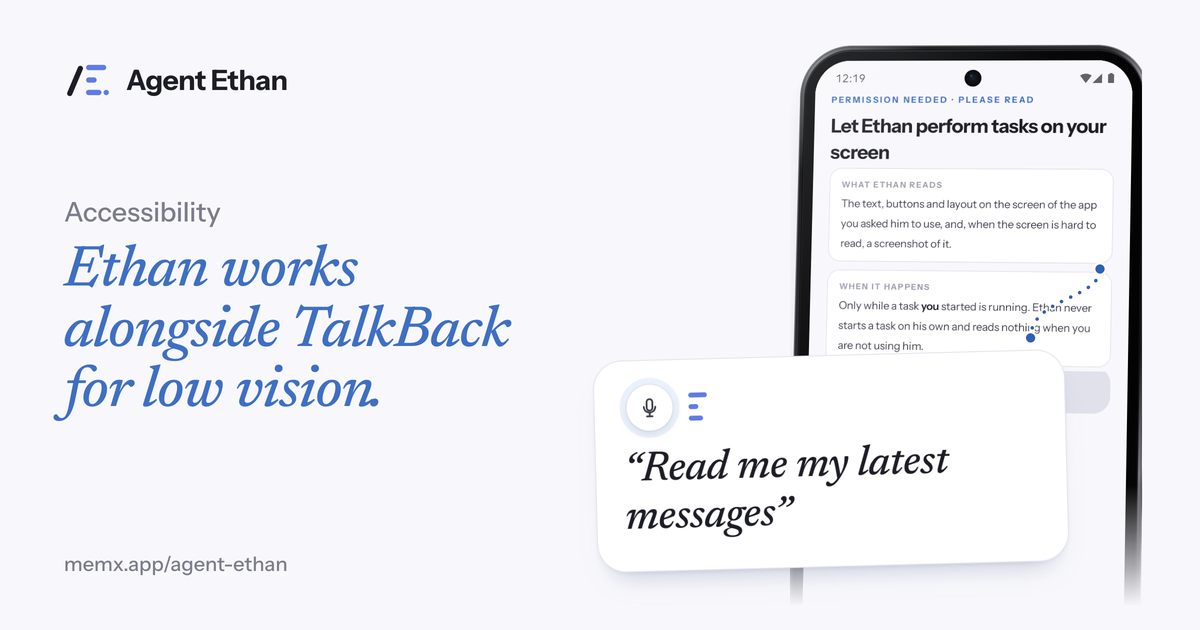
Agent Ethan works alongside TalkBack. It does not replace it. If you are blind or have low vision and already use Android's screen reader, you keep it on, and Ethan adds the ability to carry out a spoken task across your apps. Ethan's own controls are labelled so TalkBack can read them, and with "Out loud, plus on screen" chosen under "Talk to me" in Settings, Ethan speaks when it starts, whenever it needs you, and when the task is done.
What TalkBack does and what Ethan adds
Google describes TalkBack as the screen reader included on Android devices, giving eyes-free control of your device. It reads out what is on the screen and lets you move around with gestures. For many people it is the foundation of how they use a phone, and that should not change.
Some jobs are still slow in a screen reader, even when you know it well. A task like sending a message can mean moving through many elements: finding the app, the chat, the text box, the keyboard, and the Send button. Each step is a swipe and a spoken label. Ethan is meant for those multi-step jobs, where you want to say the whole thing once.
The roles are different. TalkBack tells you what is on the screen and lets you explore it. Ethan acts on a request you speak. Keeping both means you can explore with TalkBack whenever you want to, and hand the repetitive route to Ethan when you do not.
Staying in step with a spoken task
If you cannot see the screen, you need to know three things: that Ethan has started, whether it needs something from you, and when it is finished. That is what speaking out loud provides. The "Talk to me" setting in Settings offers "Out loud, plus on screen" or "On screen only". With out loud chosen, Ethan speaks when it starts, whenever it needs you, and when the task is done.
The voice is Ethan's own, and you can pick a different one in Settings. If you would rather it stay quiet, you can choose "On screen only". For a screen reader user, speaking is the sensible choice, as you do not have to go looking for status.
While a task runs, a small pill with Pause and Stop stays on screen, and a hollow gold ring marks the control Ethan is about to press for anyone who can see it. The pill's controls have names that TalkBack can read, so check on your own phone that you can reach Pause and Stop.
- Ethan speaks when it starts the task.
- It speaks whenever it needs you, for example to choose between two contacts.
- It speaks when the task is done.
- You can answer its questions by voice, by saying the number, or by tapping.
Turning things on, and keeping TalkBack as it is
Ethan works through Android's Accessibility Service, so you switch it on in Settings under Accessibility, in the same area where other accessibility tools live. You can turn it off there at any time. Ethan is designed to work alongside TalkBack, not replace it, so you keep your screen reader settings as they are.
If you ever need to switch TalkBack itself on, Google lists several ways. After setup you can open Settings, then Accessibility, then TalkBack, and choose Use TalkBack. During phone setup you can hold both volume buttons for a few seconds, and there is also a TalkBack shortcut you can enable in the same menu. Check the page below for the current options on your phone.
A family member or friend can help with the first setup if that is easier, and our guide walks through each step. After that, you start a task with the microphone, the optional floating button, or by long-pressing the app icon.
A day with both running
Imagine you want to tell your sister you are on your way. With TalkBack alone you would open the messaging app, move to the chat, find the text field, dictate or type, and move to Send. With Ethan you say, "Send a WhatsApp message to my sister saying I am on my way". Ethan says it is starting, does the steps, and tells you when it is done.
If you have two contacts with similar names, Ethan is designed to ask which one you mean rather than guess, and you answer by voice. By default, Ethan asks before it sends a message or places a call, so you get a moment to check before anything goes out. Under Autonomy in Settings you can let it press Send or Call itself instead.
Between tasks, use TalkBack exactly as you always do. Ethan only acts while a task you started is running, and it does not start tasks by itself.
Safety, privacy and honest limits
By default, Ethan stops before the steps that cannot be undone. By default it asks before it sends a message or places a call, and it stops before payments, bookings and permanent deletions and hands the phone back to you. Payments are the strongest rule: Ethan is designed to ask before paying. By design it does not touch passwords, PINs or one-time codes. For a person who cannot check the screen visually, these stops matter most, and Ethan tells you when it hands over.
While a task runs, Ethan reads the screen of the app you asked it to use, and sends screen text and sometimes a screenshot to an AI service so it can work out the next step. It does this only while the task is running. The app also has diagnostics and a Help improve Agent Ethan setting, so read the privacy policy for what is kept and for how long.
Ethan is an AI and can make mistakes, and it may not work well in every app. Keep TalkBack on, listen for what Ethan says, and use Stop if something sounds wrong.
Frequently asked questions
Does Agent Ethan replace TalkBack?
No. Ethan works alongside TalkBack and your other accessibility settings. You keep your screen reader on, and Ethan adds spoken task control across your apps.
How will I know when Ethan is finished?
Under "Talk to me" in Settings, choose "Out loud, plus on screen" and Ethan speaks when it starts, whenever it needs you, and when the task is done.
Can I use Ethan if I cannot see the screen at all?
Ethan's controls are labelled for TalkBack and it can speak its status. Because it is an AI, listen carefully and use Stop whenever something sounds wrong.
Sources
- Get started on Android with TalkBack (Android Accessibility Help)
- Turn on TalkBack (Android Accessibility Help)
Agent Ethan is a tool for operating your phone. It is not medical advice or treatment.
Ready to try it? Download Agent Ethan or read how it works.