One-Handed Phone Use: Say It, Do Not Reach
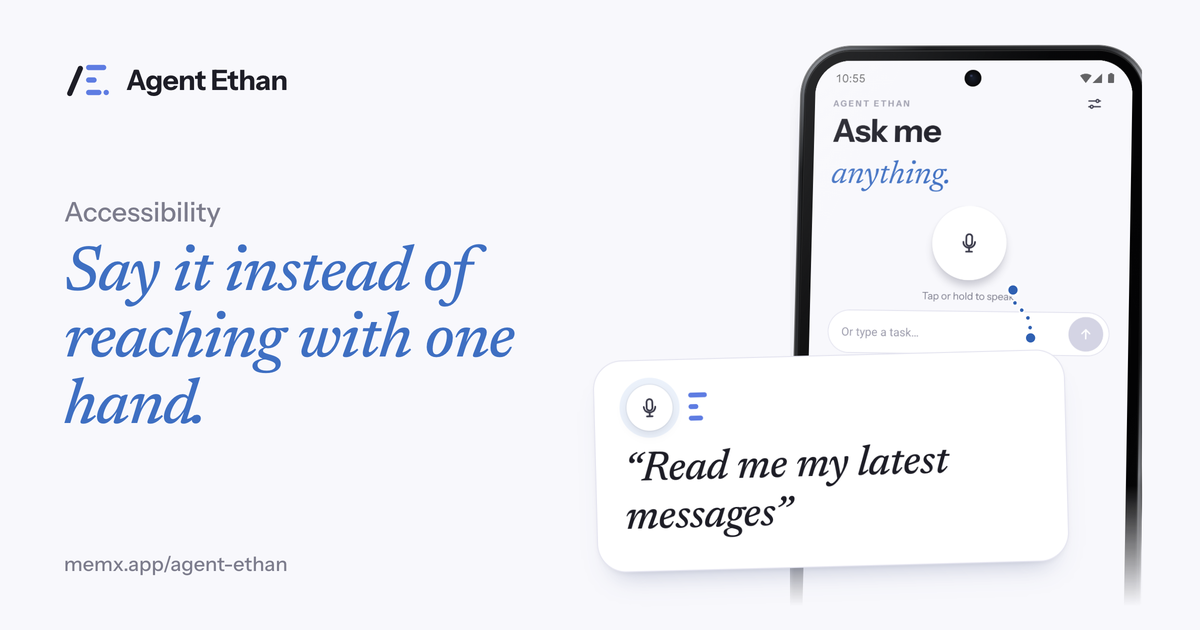
Using a phone with one hand means a lot of reaching, and some buttons are simply out of range. Agent Ethan lets you say the task out loud instead, then does the tapping, typing and scrolling for you. That helps whether you have one hand, an injured arm, a hand full of bags, or a baby on your other arm. Android also has a one-handed mode, and the two work well together.
Why one-handed use is harder than it sounds
A modern phone screen is large. With one hand, the thumb has to hold the phone and also reach every corner. The top of the screen, where menus and back arrows often live, is the hardest area to reach. Typing with a single thumb is slow and error-prone.
The cause can be permanent, such as limb difference or a condition that affects one arm. It can be temporary, such as a broken wrist, a sling, a hospital drip or a plastered hand. It can be momentary, such as carrying shopping or holding a child. In each case, the phone asks for two-handed precision it does not get.
Android has an answer for the reach problem. Google's help page says that with one-handed mode on, you can use one hand to pull down the top half of the screen and reach notifications and app content more easily. Some of those steps work only on Android 12 and up, and the setting is found by searching Settings for "One-handed mode".
Even with one-handed mode switched on, many tasks still take a long chain of touches. Opening an app, finding a person, typing a message and pressing Send is the sort of chain that gets tiring with a single thumb, and each extra tap is a chance to hit the wrong thing.
Saying the task instead of reaching for it
One-handed mode brings the screen closer. Agent Ethan goes a step further: you do not need to touch the screen for most of the task. You tap the large microphone, or the optional floating button, or long-press the app icon, and say what you want. Ethan opens the app, finds the right screen, and does the taps and typing.
This is useful when typing is the slowest part. A message to a friend becomes one sentence. A search becomes one sentence. You can also type the task if speaking is not convenient, but speaking is the point for most one-handed moments.
If you are using a sling or have a hand in a cast, you may only be able to use the phone for a few weeks, and that is a good time to try Ethan. Learning one habit, saying the task instead of tapping it, is quicker than relearning how to type with the other hand.
- "Send a WhatsApp message to my son saying I reached home"
- "Set an alarm for 6:30 tomorrow morning"
- "Call my doctor's clinic"
- "Play gentle piano music on YouTube"
- "Read me my latest messages"
Keeping your one free hand free
Because Ethan does the work, your hand can go back to what it was doing. With "Out loud, plus on screen" chosen under "Talk to me" in Settings, Ethan speaks when it starts, whenever it needs you, and when the task is done. You do not need to keep looking at the screen to know where things stand.
A small pill stays on screen with Pause and Stop, and a hollow gold ring marks what Ethan is about to press. If Ethan has a question, numbered choices appear and you can answer by saying the number, so you are not stretching for a small target to tap. Pause and Stop on the pill are deliberate presses, so you always have a clear way to take control back.
The optional floating button can help here too. Once you switch it on in Settings, Ethan stays as a small button over other apps that you tap to speak a task.
Pause is useful in a busy moment: if someone speaks to you or a child needs you, tap Pause on the pill, or say nothing and let a short task finish. You can continue or stop afterwards without starting over.
Combining Ethan with Android's one-handed mode
You do not have to choose. Use Android's one-handed mode when you want to browse or read, because pulling the screen down is quick for short touches. Use Ethan when the job has several steps, or when you are typing. Between them, most of a phone is within reach of one hand.
To turn on one-handed mode, open Settings, search for One-handed mode, and switch on Use One-handed mode. Google's page notes that you can add it to Quick Settings for easier access. Steps vary by phone and by Android version, so check the Google page for yours.
To use Ethan, you switch it on once in Settings under Accessibility. A friend or family member can help with that first step, which is fiddly with one hand, and you can follow our setup guide together.
Safety and honest limits
By default, Ethan stops before steps that cannot be undone. By default it asks before it sends a message or places a call, and it stops before payments, bookings and permanent deletions and hands the phone back to you. Payments are the strongest rule: Ethan is designed to ask before paying. Under Autonomy in Settings you can choose whether Ethan asks before Send or Call or presses them itself.
With one hand busy, a wrong tap is easy to make, so these stops are useful. Ethan is an AI and can still misread a busy screen, so keep an eye on the first few tasks. Screen content goes to an AI service only while a task you started is running. The app also has diagnostics and a Help improve Agent Ethan setting, so read the privacy policy for what is kept and for how long.
If you have a permanent one-handed setup, ask an occupational therapist about mounts and stands that hold the phone steady while you speak to it. A phone that stays put is easier to start a task on, and it does not need your hand to hold it.
Frequently asked questions
Do I still need one-handed mode if I use Agent Ethan?
They help in different ways. One-handed mode brings the screen within reach, and Ethan does multi-step tasks by voice. Many people use both.
Can I use Agent Ethan without touching the screen at all?
You still need to switch it on once and start a task, for example with the microphone or the long-press shortcut. After that, Ethan does the tapping and typing.
Which Android versions does Agent Ethan need?
Android 11 or newer. Android's one-handed mode steps may need Android 12 or newer, according to Google's help page.
Sources
- Use one-handed mode (Android Accessibility Help)
- Create an accessibility service (Android Developers)
Agent Ethan is a tool for operating your phone. It is not medical advice or treatment.
Ready to try it? Download Agent Ethan or read how it works.