What the Android Accessibility Permission Allows
The Android accessibility permission lets a service you approve read what is on your screen and perform taps, typing and scrolling for you. It is a very powerful permission, which is why Android makes you turn it on yourself and lets you turn it off just as easily. This post explains what it allows, why Android guards it, and how Agent Ethan uses it only while a task you started is running.
What an accessibility service is
An accessibility service is a special kind of app that helps people use their phone when the usual touch interface does not work for them. Screen readers and switch-control tools are well-known examples. Android's developer documentation says a service interacts mainly with objects that represent on-screen elements such as buttons, lists and text, and that it can inspect the screen's layout when it is set up to, for example to read text from the screen.
The same documentation says accessibility services can perform actions, such as clicking buttons or scrolling lists, on behalf of the user. They can also send gestures to the screen, such as taps and swipes. Put those together and you have a service that can read a screen and act on it, which is the capability that makes voice control of other apps possible.
Why Android treats the permission with care
Reading and operating other apps is a lot of access, so Android builds in friction on purpose. The developer documentation says the system-only binding permission must be enforced in the manifest, so that only the system can bind to the service.
The documentation also carries a caution: accessibility services are a specialized tool, and you should build one only when you are creating a general-purpose assistive tool. In other words, Android expects this permission to be used to help people operate their devices, not as a shortcut for ordinary app features.
On newer Android versions there is a further layer. Google's help page on restricted settings says some device settings may be restricted when you install an app. It uses an app designed to support people with disabilities as an example: with access to accessibility settings, the app can read content on your screen and interact with apps on your behalf. If Android restricts the setting, you may need to open the app's info screen, tap the menu and choose Allow restricted settings, and Google does not recommend doing that unless you trust the app developer.
What Agent Ethan does with it
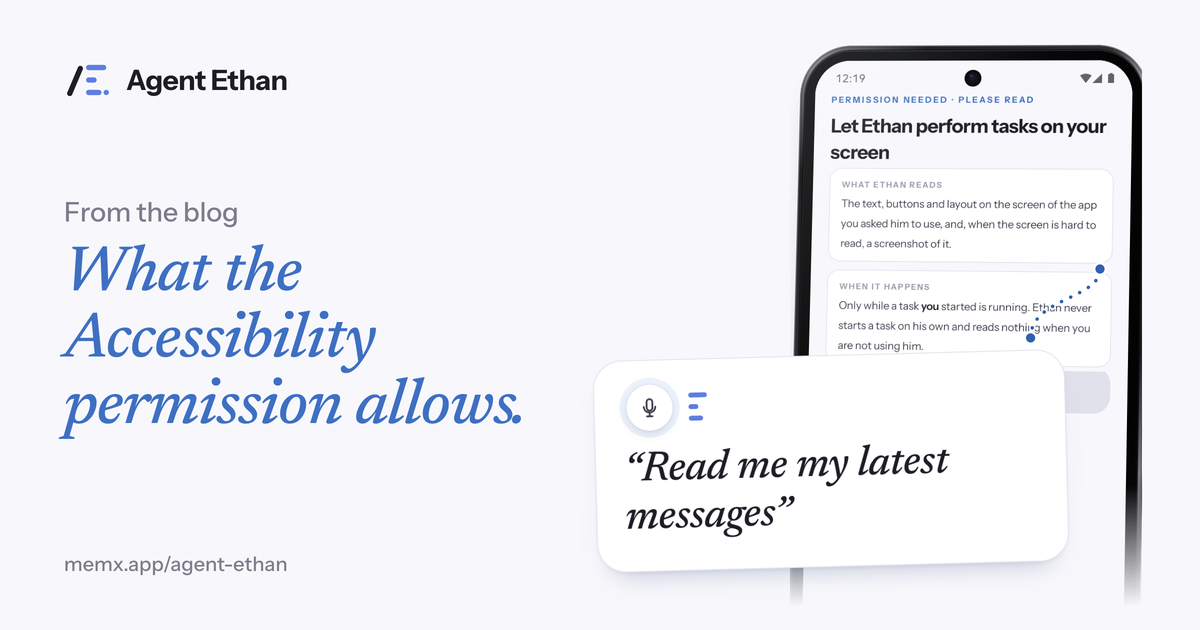
Agent Ethan is an accessibility service, and it asks for this permission openly. With your explicit permission, it reads the content of the screen of the app you asked it to operate, meaning text, buttons, and a screenshot when the text is not enough. It then performs the taps, typing and scrolling needed for the task you asked for, and if you choose "Out loud" in Settings it tells you what it is doing.
The limits matter as much as the abilities. Ethan only does this while a task you started is running. It does not start tasks on its own, and it does nothing when you are not using it. While it works, a small pill stays on screen with Pause and Stop, and a gold ring shows what it is about to press.
- It reads: the text, buttons and, when needed, a screenshot of the app you asked it to use.
- It does: taps, typing and scrolling for the task you set.
- By default it stops before: Pay, Buy, Book, Send money and permanent deletions, and it hands the phone back to you. By design it skips passwords, PINs and one-time codes, and does not change critical settings such as a factory reset or removing an account.
- It does not run tasks you did not start: it works only while a task you started is running.
Where the screen content goes
To work out the next step, Ethan sends screen content and screenshots to an AI service, Google Gemini through Neural Forge's server, only while a task you started is running. This happens over an encrypted connection. The app also has diagnostics and a Help improve Agent Ethan setting, so read the privacy policy for what is kept and for how long. The policy says nothing is sold and there are no ads.
Your account uses your email address and a daily usage count, and the app keeps a task history that you can clear from Settings. To remove your account and data, open Settings, then About, then Delete account & data. The privacy policy is the legal reference for everything else that is kept and for how long.
To be plain about it: screen content does leave the phone in the default cloud mode, in order to be understood, and the privacy policy gives the full details.
How to see it and switch it off
You stay in charge of the permission. Google's help page for Switch Access shows the route for that service, and the pattern is the same one Ethan's own permission screen describes: open the Settings app, choose Accessibility, pick the service, and use the On/Off switch at the top. Doing that for Agent Ethan stops it from reading or operating anything.
Android's Quick Settings panel works by tapping an icon to turn a setting on or off, and Google's help page says that on Android 15 and newer you can add an accessibility feature there with its Quick settings shortcut option. Whether a shortcut is offered for a given service depends on the service.
If you ever decide you no longer want Ethan, you can switch it off, uninstall the app, and delete your account. Nothing about the permission locks you in.
Frequently asked questions
Is the Android accessibility permission safe?
It is powerful, which is why Android makes you enable it yourself and why newer versions can restrict it for apps installed from downloaded files. Only enable it for apps you trust, check what the app says it reads and does, and remember you can switch it off in Settings whenever you like.
Can an accessibility service read my passwords?
Android's accessibility permission gives broad access, so choose carefully. Agent Ethan's own safety screen says it skips password boxes and one-time codes and will not touch them even if you ask.
How do I turn off an accessibility service on Android?
Open Settings, tap Accessibility, choose the service, and use the On/Off switch at the top, as Google's Switch Access page describes. Some Android versions can also add accessibility features to Quick Settings.
Sources
- Create an accessibility service (Android Developers)
- Learn about restricted settings (Android Help)
- Turn off Switch Access (Android Accessibility Help)
- Find accessibility services in Quick Settings (Android Accessibility Help)
Ready to try it? Download Agent Ethan or read how it works.